
Classes and children
A class per age band, children typed or pasted in, a teacher assigned to each class.
Children belong to classes, and teachers are assigned to classes. Set up the classes first, then add the children, then assign the teachers.
Create a class
Open Classes and choose New class.
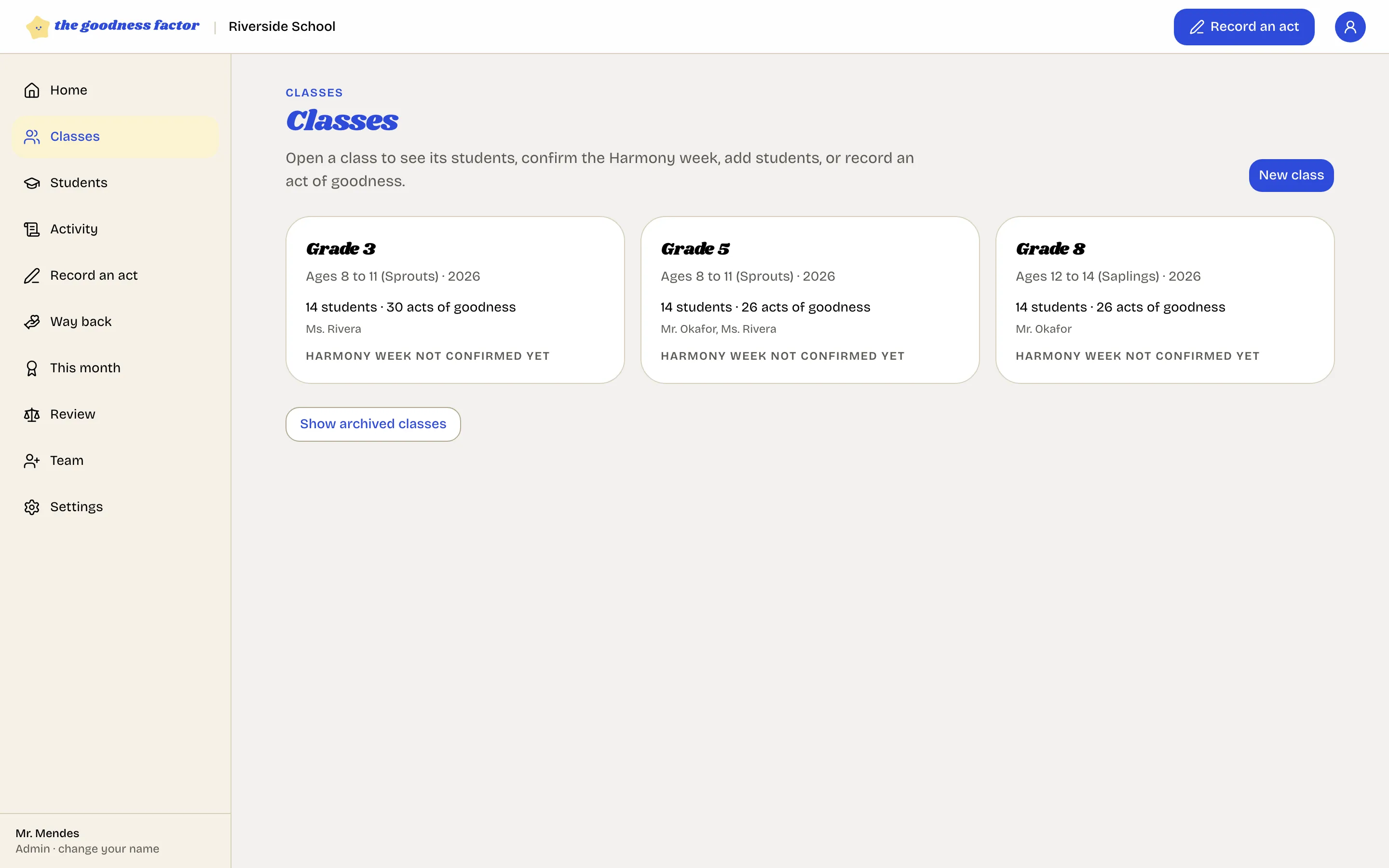
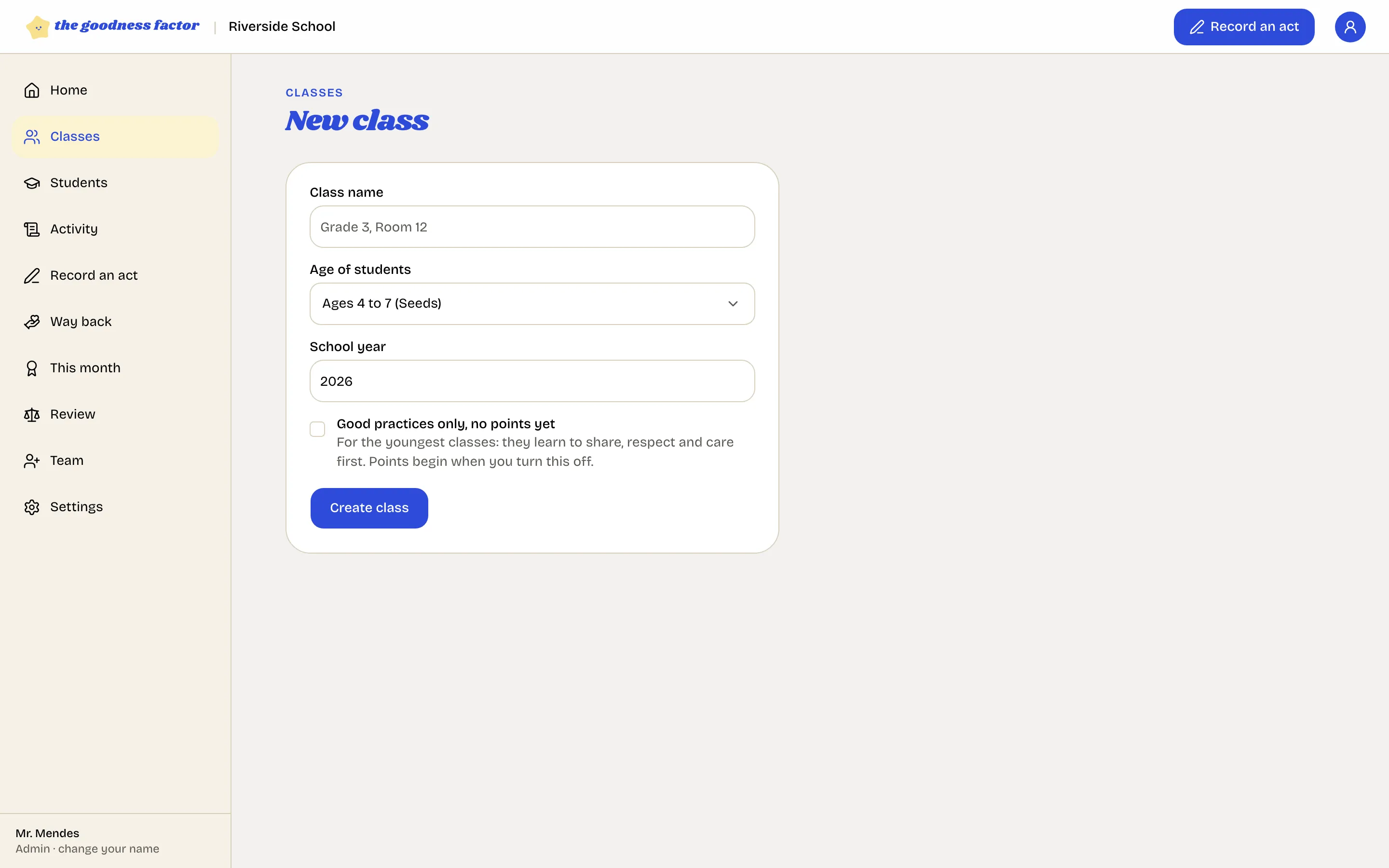
- Class name. What the school calls it: "Grade 3", "3B", "Mrs. Nair's class".
- Age of students. The band chooses the examples the record screen shows: Seeds (4 to 7), Sprouts (8 to 11), Saplings (12 to 14) or Trees (15 to 18).
- School year.
- Good practices only, no points yet. For the youngest classes: they learn to share, respect and care first. Points begin when you turn this off.
Add the children
On the class page, open Add students. Three ways:
- Add one student: first name, last name, how the name is shown, and optionally a date of birth, a gender and a student number.
- Type or paste names: one name per line, straight from a list.
- Upload a spreadsheet: the roster as the office keeps it.
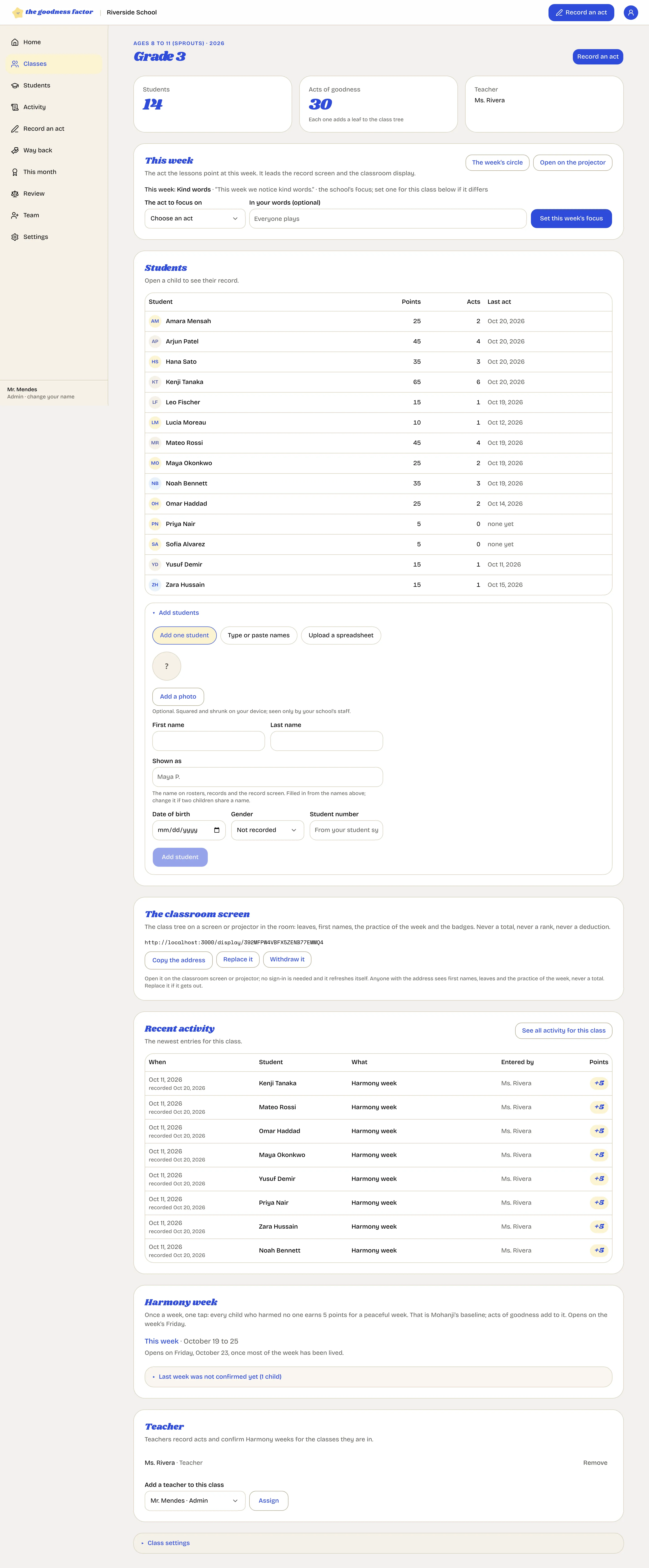
A child's shown as name is what appears on rosters, records and the classroom screen. The app fills it from the names; change it if two children share a name.
Assign the teachers
On the class page, the head adds each teacher who records for that class. A teacher sees only the classes they are assigned to, and can record only for those. A class can have more than one teacher, and a teacher more than one class.
When a child moves or leaves
Open the child's page and the section Photo and profile: change the class, or mark that the child has left the school. Entries stay in the record exactly as written; the child simply stops appearing on lists and screens.