
Invite your team
One link per role; the person opens it, signs in with their email, and lands in your school.
The head invites everyone from Team. Each invite link carries a role, so nobody types anything: the person opens the link, signs in with their email, and is in your school as a teacher, a counselor or an admin.
Make an invite link
- Open Team in the left bar.
- Who are you inviting? Pick the role.
- Teacher records acts of goodness and peaceful weeks for their own classes.
- Counselor runs the way back for every child and sees every record.
- Admin does everything: classes, people, points, settings and the integrity check. Give this to the head and to nobody who does not need it.
- For how many people, and for how long? One person, up to five, or up to twenty-five; valid for seven, fourteen or thirty days.
- Create the invite link.
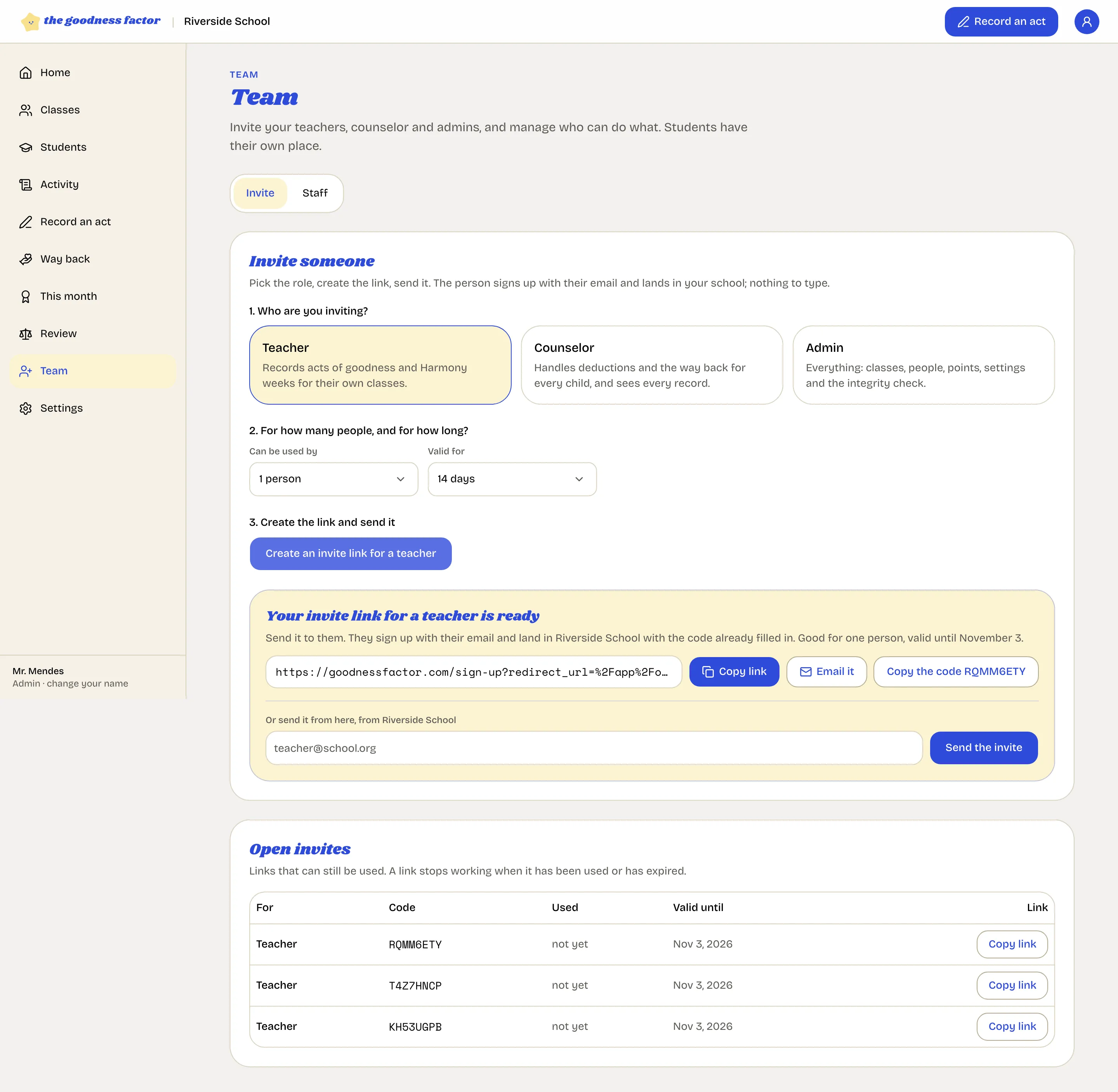
The link appears with its code. Copy it, or send it straight from the app with "Send the invite". Someone with only the code can type it on the welcome screen.
One link for the whole staff room
A link for "up to 25 people" valid for fourteen days is the quick way to bring every teacher in at once: put it in a staff message, and each teacher signs in with their own email. Each person still gets their own account and their own name on their entries.
Open invites
The bottom of the page lists every link that can still be used, with its code and expiry. A link stops working when it has been used up or has expired. There is nothing to clean up.
After someone joins
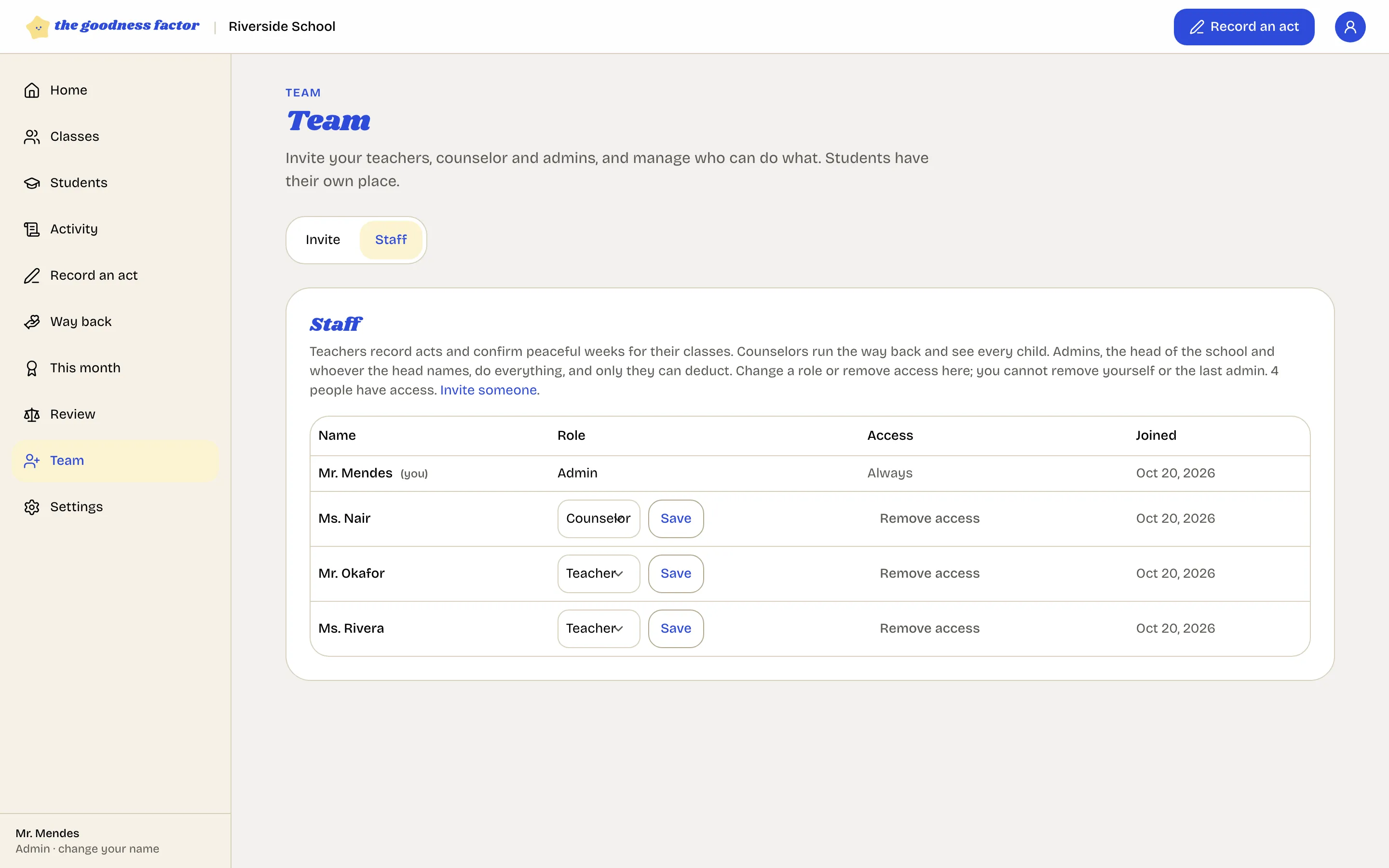
They appear under Team, Staff with their role. From there the head can change a role or remove access. You cannot remove yourself or the last admin.
Next
Classes and children: a class per age band, and a teacher assigned to each.