
Create your school
From the sign-in page to a school with a name, a clock and its first admin.
The first person to sign in creates the school and becomes its admin. That is the head of the school, or someone the head trusts to set things up.
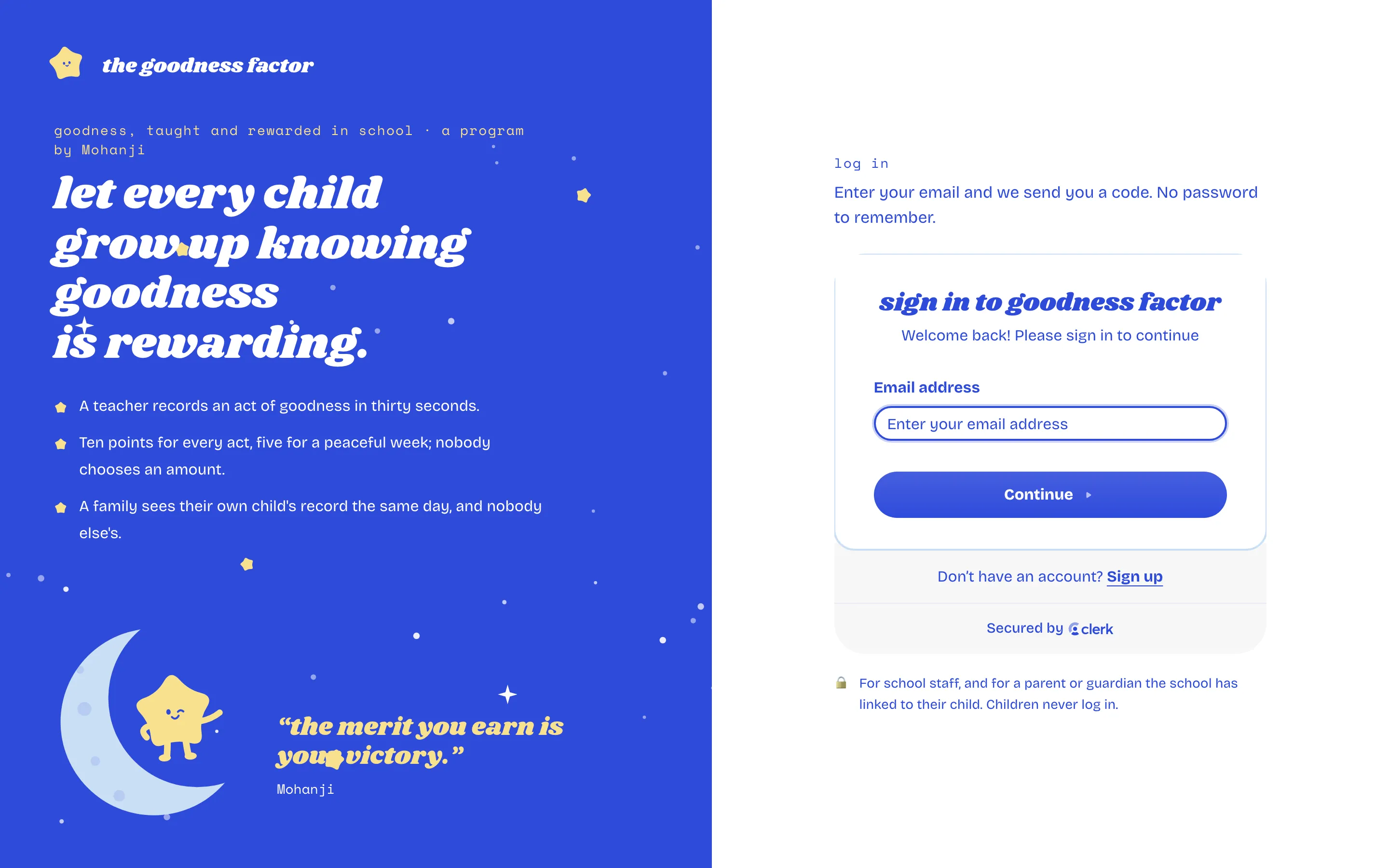
Sign in
Go to goodnessfactor.com and choose "log in". Enter your email address; a code arrives by email, and you type it in. There is no password to remember. Children never sign in.
Which one are you
With no school yet, the app asks which one you are.
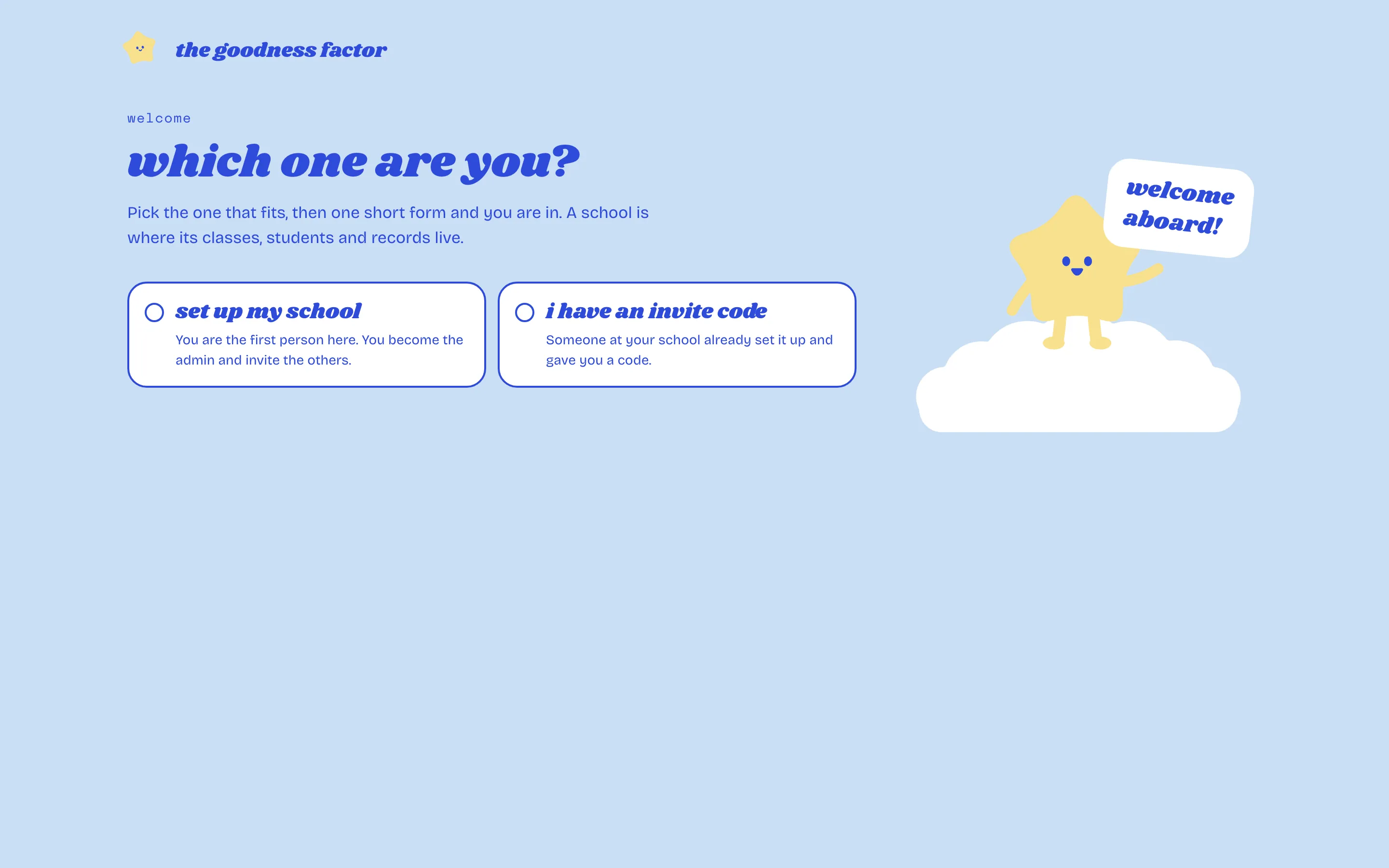
Choose set up my school. Then one short form:
- School name. The name everyone sees, on every screen and every certificate.
- Your name, as students and staff see it. The name that goes on every entry you make, for example "Mr. Mendes" or "Mrs. Nair".
- Country and time zone. The clock that the weeks follow: "today" and "this week" are the school's, and the peaceful week opens on Friday in your time.
That is the school. You are its admin.
What happens next
You land on the home page of an empty school. Three things to do, in order: invite your team, create classes and add children, and record the first act.
If someone else already set it up
Choose I have an invite code instead and paste the code the head gave you. You join their school in your role. See Invite your team.